Who can delete a team
Organization admins can delete a team in the SafeTeam web app, at app.safeteam.io.
How to delete a team
Sign in at app.safeteam.io and click Teams in the left menu.

Click Teams in the left menu. 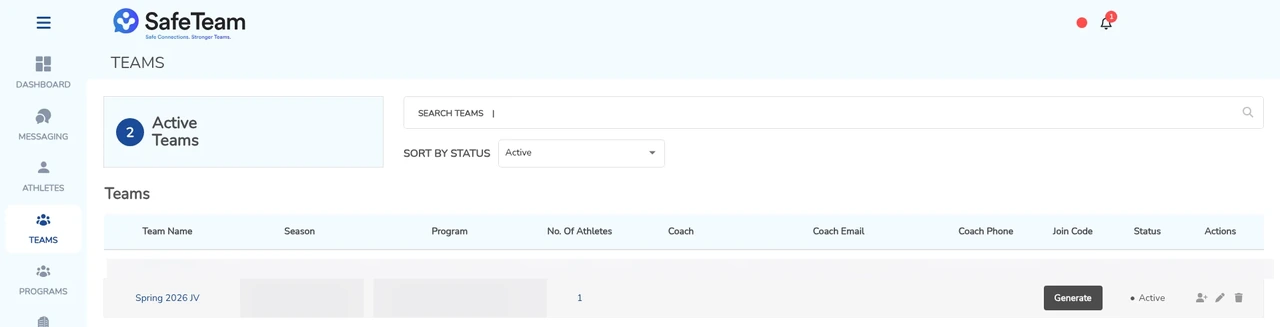
Your Active teams list, with an Actions column on the right. Find the team you want to delete, then click the trash icon in the Actions column.
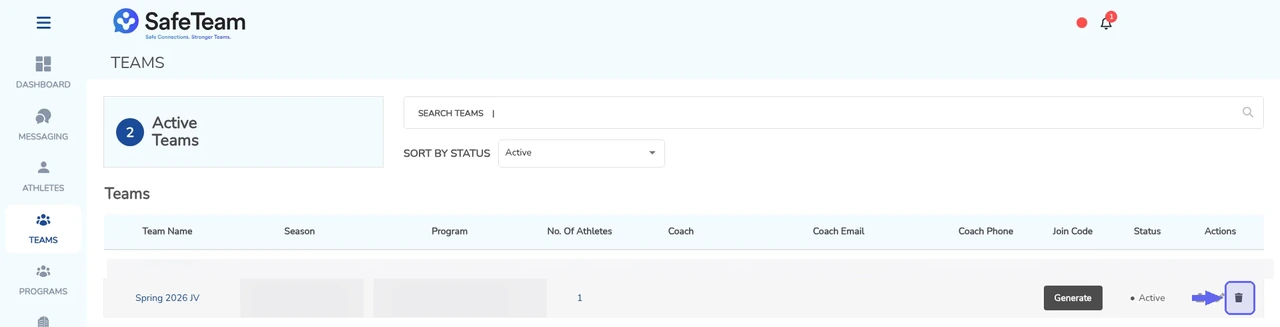
Click the trash icon in the Actions column for that team. Read the confirmation. It explains that you are about to revoke all users’ access to this team, and the team will be marked as inactive. If this is the team you meant, click OK.
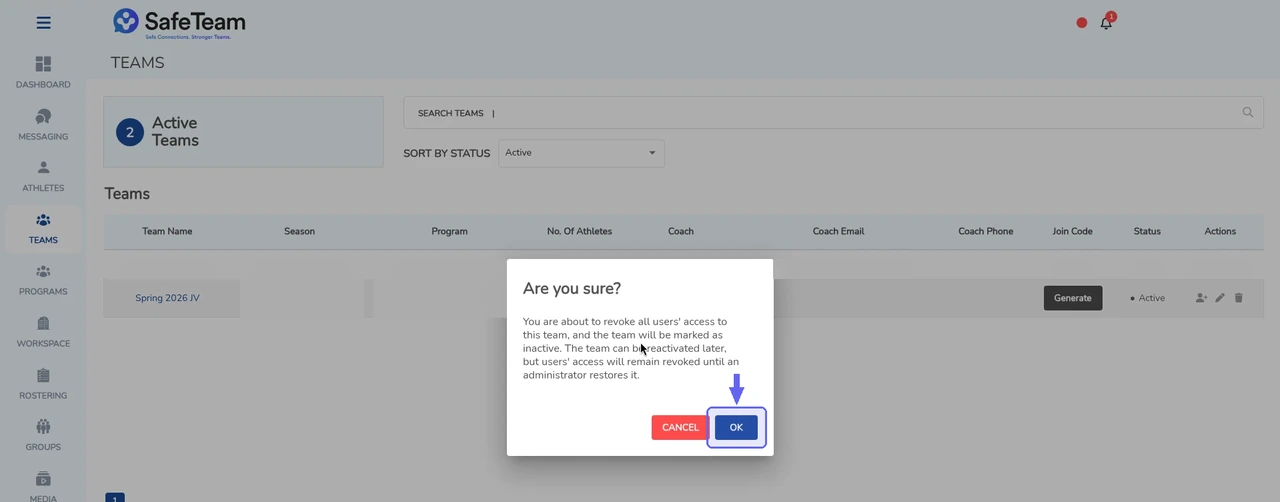
Read the confirmation, then click OK. You’ll see a message that says “Team access updated.” The team leaves your Active teams list.
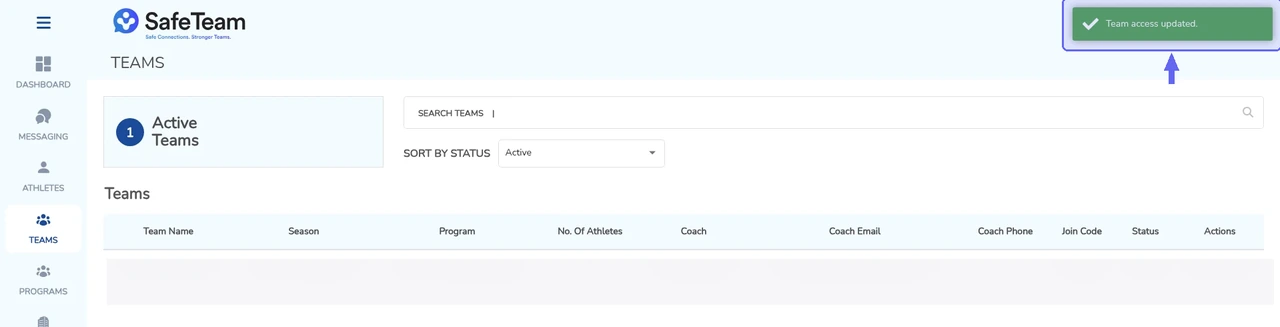
A confirmation appears, and the team is no longer in your Active teams list.
What happens after you delete a team
- Everyone on that team loses access to it, including the roster, team chats, and the schedule for that team.
- Their access to any other teams stays exactly the same, and they stay logged in.
- Students can be added to a new team later — for example, next season — as usual.
- Families and parents will no longer see the deleted team for that student, but they will still see any other teams the student is on.
Tips
- If someone still had this team selected, ask them to switch to their other team in the team picker at the top of the app.
- Treat deleting a team as permanent. The confirmation mentions that a team can be reactivated later, but people’s access stays revoked until an administrator restores it, and that isn’t always straightforward. If you might need the team again, wait to delete it.
To wrap up a single team, delete that team — don’t use Archive or End Seasonon the program’s season. Archiving a season signs everyone in the organization out until the season is restored. End Season can’t be undone.
Need help?
If you have questions, email hello@safeteam.io or visit our help center.